
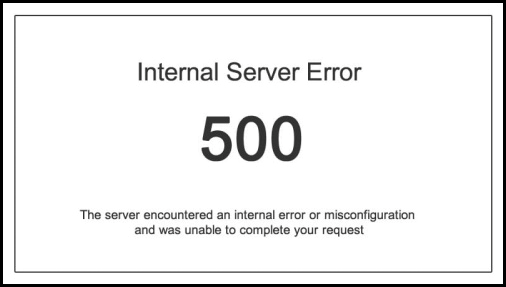

Now, instead of your homepage, you’re staring at a 500 Internal Server Error. No warning, no clue what went wrong — just a frustrating dead end.
We’ve all been there. That sinking moment when your website goes down, and you have no idea why. It’s one of the most common (and confusing) WordPress errors out there. The message doesn’t explain the problem — only that something’s broken.
The good news? It’s almost always fixable. Having helped countless customers, we’ve seen this error many times — and we know exactly how to handle it.
In this guide, we’ll walk you step by step through how to get your site back online fast. Follow along, and you’ll have everything running smoothly again in no time. 🚀
What Is the 500 Internal Server Error?
The 500 Internal Server Error is like a locked door with no key — you know something’s wrong, but there’s no note explaining what happened.
This error isn’t unique to WordPress. It can appear on any website when the server runs into a problem it doesn’t know how to handle.
The “500” in the message is an HTTP status code. If you look it up, you’ll find a rather vague definition:
“The 500 Internal Server Error response code indicates that the server encountered an unexpected condition that prevented it from fulfilling the request.”
Not very helpful, right? It’s basically the server’s way of saying, “Something broke, but I’m not sure what.”
How the error appears can vary depending on your hosting environment and web browser. For example, here’s how it might look on an Apache server:
If your site runs on Nginx, it might look a little different. And if Google Chrome can’t load a proper error page, you’ll see something like this:
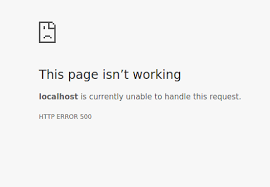
Because the 500 Internal Server Error provides no specific diagnostic information, it can feel daunting for beginners. Troubleshooting is like a mechanic’s diagnostic process: you systematically inspect likely components until the fault appears. The recommended approach is a structured, step-by-step investigation. Follow the sections below for the most common causes and practical solutions to get your WordPress site back online.
What Causes the Internal Server Error in WordPress?
The Internal Server Error in WordPress is like a puzzle with missing pieces — you know something’s wrong, but the error message doesn’t tell you where the problem lies.
From experience, the most common culprit is a corrupt .htaccess file. Other frequent offenders include faulty plugins, incompatible themes, or even PHP memory limits that cause WordPress to crash.
Sometimes, the issue stems from corrupt core files, which can leave you locked out of your site without warning.
In certain cases, the error only appears in the WordPress admin area, while the rest of your site continues working fine. It’s like being locked out of your own house while guests can still enter through the back door.
What makes this error tricky is that it usually occurs before WordPress can fully load, meaning the server doesn’t have enough information to explain what went wrong. That’s why troubleshooting it often requires checking several possible causes one by one.
Fixing the 500 Internal Server Error in WordPress
Before you start troubleshooting, it’s essential to create a full backup of your website. This ensures that if anything goes wrong, you can easily restore your site to its previous working state.
Step 1: Create a Backup of Your Website
If you still have access to your WordPress admin area, the easiest way to back up your site is by using a WordPress backup plugin.
We recommend using Duplicator. It not only allows you to quickly create a complete backup but also lets you:
- Store your backups securely in the cloud
- Restore your website easily if something breaks during troubleshooting
If you don’t have access to your WordPress dashboard, you can still create a backup manually using:
- phpMyAdmin to export your WordPress database
- An FTP client (like FileZilla) to download your website files
Step 2: Start Troubleshooting
Once your backup is ready, you can begin troubleshooting the 500 Internal Server Error.
In the next sections, we’ll walk through each possible cause — from cache issues and corrupted .htaccess files to PHP memory limits — so you can pinpoint the problem and get your site back online safely.
Clear WordPress and Browser Cache
Sometimes, your browser or a WordPress caching plugin may store a cached copy of an error page, causing the 500 error to keep appearing even after the issue has been fixed.
If you can still access your WordPress admin area, go to your caching plugin’s settings page and clear the site cache from there.
Next, clear your browser cache as well to make sure you’re seeing the latest version of your website instead of an outdated cached error page.
Check for a Corrupt .htaccess File
The .htaccess file is a small yet powerful configuration file used by WordPress to manage redirects and URL structures. Unfortunately, it’s also one of the most common causes of the 500 Internal Server Error.
Step 1: Try Regenerating the .htaccess File Automatically
The easiest fix is to regenerate it directly from your WordPress dashboard:
- Go to Settings> Permalinks in your WordPress admin area.
- Click Save Changes — without making any edits.
This prompts WordPress to update or create a fresh .htaccess file automatically.
Now, visit your website to see if the error is gone.
If the problem persists, it may mean WordPress couldn’t write to the .htaccess file due to file permission issues. In that case, you’ll need to replace it manually.
Step 2: Replace the .htaccess File Manually
- Connect to your site using FTP or your hosting account’s File Manager (usually in cPanel).
- In your site’s root directory (where you’ll see folders like
wp-admin,wp-content, andwp-includes), find the.htaccessfile. - Rename it to something like
.htaccess_old— This keeps a backup but disables the current file.
Next, you’ll create a fresh .htaccess file:
- In the same directory, could you create a new file and name it?
.htaccess. - Open it in a plain text editor (such as Notepad or your FTP client’s “View/Edit” option).
- Paste the following default WordPress rewrite rules inside:
# BEGIN WordPress
<IfModule mod_rewrite.c>
RewriteEngine On
RewriteBase /
RewriteRule ^index\.php$ - [L]
RewriteCond %{REQUEST_FILENAME} !-f
RewriteCond %{REQUEST_FILENAME} !-d
RewriteRule . /index.php [L]
</IfModule>
# END WordPress
- Save your changes and upload the file back to your server.
- Revisit your website — if it loads correctly, congratulations! You’ve fixed the internal server error. 🎉
Increase the PHP Memory Limit
Sometimes, a 500 Internal Server Error occurs when a script uses up all of your website’s PHP memory limit. This can happen with heavy plugins, complex themes, or resource-intensive processes.
Step 1: Edit the wp-config.php File
The easiest way to increase your PHP memory limit is by editing your wp-config.php file.
⚠️ Note: Be very careful when editing WordPress core files. A small mistake could bring your website down.
- Connect to your website using an FTP client (like FileZilla) or the File Manager in your hosting control panel.
- In your website’s root directory (where you’ll see folders like
wp-content,wp-admin, andwp-includes), find the file namedwp-config.php. - Download a copy to your computer as a backup.
- Right-click the file and choose View/Edit.
- Add the following line of code just above the line that says:
/* That’s all, stop editing! Happy publishing. */
define( 'WP_MEMORY_LIMIT', '256M' );- Please save the file and re-upload it to your server.
Now visit your website to see if the error has disappeared.
If 256M doesn’t fix it, you can try increasing it to 512M instead.
Step 2: Increase PHP Memory via php.ini (Alternative Method)
If you see the internal server error only when logging into your WordPress admin area or uploading media, you can increase the memory limit using a php.ini file.
- On your computer, create a new blank text file and name it
php.ini. - Paste this line inside the file:
memory_limit = 256M- Save the file.
- Upload it to your /wp-admin/ folder using FTP.
Step 3: Identify What’s Using Up the Memory
If increasing the memory limit resolves the issue, remember — this is only a temporary fix.
Something on your site is still consuming too many resources.
Common causes include:
- Poorly coded or outdated plugins
- Heavy or incompatible themes
We strongly recommend asking your hosting provider to review your server logs to pinpoint exactly what’s causing the memory exhaustion.
If increasing the memory limit doesn’t solve the issue, continue to the next troubleshooting steps below.
Deactivate All Plugins
If the 500 Internal Server Error persists, the next likely culprit is a faulty or incompatible plugin. A single malfunctioning plugin can break your entire site — even if everything was working fine just moments ago.
Step 1: Disable Plugins from the Admin Dashboard (if accessible)
If you can still log in to your WordPress admin area, this is the easiest method:
- Go to Plugins » Installed Plugins.
- Select all plugins using the checkbox at the top.
- From the Bulk Actions dropdown, choose Deactivate, then click Apply.
Once all plugins are deactivated, visit your website again.
- ✅ If the error disappears, one of your plugins was causing the problem.
- ❌ If the error remains, move on to the next troubleshooting step.
If the site starts working again, reactivate your plugins one by one, refreshing your site after each activation. This helps you pinpoint the plugin responsible for the error.
Step 2: Disable Plugins via FTP (if locked out of WordPress)
If you can’t access your WordPress dashboard, you’ll need to disable plugins manually:
- Connect to your website using FTP or your hosting File Manager.
- Navigate to
/wp-content/and find thepluginsfolder. - Rename this folder to something like
plugins_old.
This immediately deactivates all plugins on your site.
Now, try visiting your website again.
- If your site loads normally, rename the folder back to
pluginsand then open it. - Rename each plugin’s folder one by one (for example,
contact-form-7_old) and test your site each time until the error reappears.
The last plugin you renamed before the site broke again is your culprit.
Step 3: Remove or Replace the Problem Plugin
Once you identify the faulty plugin:
- Delete it completely or check for an update (the developer may have already fixed the issue).
- You can also look for an alternative plugin that offers similar features but with better compatibility.
Switch to a Default WordPress Theme
If deactivating plugins didn’t fix the 500 Internal Server Error, your WordPress theme could be the problem. A corrupted or outdated theme can conflict with WordPress core files or plugins, leading to a server crash.
Step 1: Switch Themes from the Admin Dashboard (if accessible)
If you can still access your WordPress admin area, try switching to a default WordPress theme:
- Go to Appearance> Themes.
- Activate a default theme such as Twenty Twenty-Five, Twenty Twenty-Four, or another WordPress default theme.
Once activated, revisit your website.
- ✅ If the error is gone, then your previous theme was causing the issue.
- ❌ If the error remains, continue to the next method.
Step 2: Switch Themes via FTP (if locked out of WordPress)
If you can’t access the admin dashboard, you can change your theme manually using FTP or your File Manager:
- Connect to your website using FTP or your hosting control panel’s File Manager.
- Navigate to the
/wp-content/themes/directory. - Inside, you’ll see folders for each installed theme (for example,
astra,hello-elementor,twentytwentyfive, etc.). - Find your currently active theme’s folder and rename it — for example, change
astratoastra_old.
When WordPress can’t find the active theme folder, it will automatically switch to a default theme (if one is available).
Now refresh your website and check if the 500 error disappears.
Step 3: Reinstall or Replace Your Theme
If your website starts working again after switching themes, then your old theme was the cause. You can:
- Reinstall a fresh copy of the theme to replace any corrupted files.
- Contact the theme developer for support or updates.
- Or continue using a default WordPress theme for better stability.
If changing the theme didn’t resolve the error, then it’s time to dig deeper into the WordPress core files or server configuration. We’ll cover that in the next section.
Reupload Core WordPress Files
If switching themes didn’t fix the 500 Internal Server Error, your WordPress core files might be corrupted or incomplete. This can happen during an update, file transfer, or due to a server interruption.
Reuploading the core WordPress files can replace any damaged ones without affecting your content, plugins, or themes.
Step 1: Download a Fresh Copy of WordPress
- Visit the official WordPress.org website.
- Download the latest version of WordPress as a .zip file.
- Once downloaded, extract the ZIP file on your computer.
Inside the extracted folder, you’ll find subfolders like wp-admin, wp-includes, and several files such as wp-settings.php.
Step 2: Connect to Your Website via FTP
- Use an FTP client (like FileZilla) or your hosting File Manager to connect to your website.
- In the site’s root directory, you’ll see folders and files such as:
wp-admin
wp-content
wp-includes
wp-config.php
index.php
⚠️ Important: Do not delete or overwrite the wp-content folder or the wp-config.php file — these contain your themes, plugins, and configuration settings.
Step 3: Upload Fresh WordPress Files
- From the new WordPress folder you extracted earlier, select all files and folders except the
wp-contentfolder. - Upload them to your website’s root directory using FTP.
- When prompted, choose to “Replace” or “Overwrite” the existing files.
This process will refresh all your core WordPress files while keeping your themes, plugins, and uploads intact.
Once the upload completes, visit your website to see if the 500 error is resolved.
Step 4: Verify Your Website
If your site loads correctly — congratulations! 🎉 You’ve successfully repaired your WordPress core.
At this point, it’s a good idea to:
- Clear your WordPress and browser cache
- Revisit Settings » Permalinks and click Save Changes (to regenerate rewrite rules)
- Make sure your site is running the latest WordPress version
Enable Debug Logs in WordPress
If the 500 Internal Server Error still isn’t resolved, it’s time to dig deeper.
WordPress includes a built-in debugging system that can record errors and warnings to help you identify what’s breaking your site.
Enabling debug logs lets you see exactly which plugin, theme, or function triggered the issue.
Step 1: Edit the wp-config.php File
- Connect to your website using FTP or your hosting File Manager.
- Locate and open the
wp-config.phpfile in your website’s root directory. - Search for the line that says:
/* That’s all, stop editing! Happy publishing. */Just above that line, paste the following code
Here’s what each line does:
define( 'WP_DEBUG', true );
define( 'WP_DEBUG_LOG', true );
define( 'WP_DEBUG_DISPLAY', false );WP_DEBUGturns debugging mode on.WP_DEBUG_LOGsaves all errors to a file named debug.log inside the/wp-content/folder.WP_DEBUG_DISPLAYhides errors from public view on your website (to avoid exposing sensitive information).
Save your changes and re-upload the file to your server.
Step 2: Reproduce the Error
Now visit the pages where the error occurs (for example, your homepage or WordPress admin).
WordPress will automatically log any PHP errors or warnings in a file located at:
/wp-content/debug.logYou can open this file using your FTP client or File Manager to view detailed error messages.
Step 3: Analyze the Error Log
The debug log will show you what file and line number triggered the issue — often pointing directly to a specific plugin, theme, or function.
For example, you might see something like:
PHP Fatal error: Uncaught Error: Call to undefined function in /wp-content/plugins/example-plugin/plugin.php on line 55In that case, you now know the exact source of the error and can take targeted action — such as disabling or fixing the plugin.
Step 4: Turn Off Debug Mode
Once you’ve finished troubleshooting, it’s important to disable debugging to prevent error details from being logged or exposed.
To do this, open your wp-config.php file again and change the line:
define( 'WP_DEBUG', true );to
define( 'WP_DEBUG', false );Save and re-upload the file.
Enabling debug logs gives you valuable insight into what’s happening behind the scenes — often revealing the exact cause of stubborn 500 Internal Server Errors that aren’t visible from the frontend.
Contact Your Hosting Provider
If none of the above solutions fix the 500 Internal Server Error, the problem might be server-side, and you’ll need assistance from your hosting provider.
Your hosting provider has access to server logs and configuration files that aren’t visible to you as a WordPress user. These logs can reveal the exact technical cause of the issue — such as memory exhaustion, permission problems, or server misconfiguration.
What to Ask Your Hosting Provider
When contacting support, share the following details to help them diagnose the issue faster:
- The exact error message or symptoms (e.g., “500 Internal Server Error on all pages” or “error only in admin area”).
- The steps you’ve already taken include deactivating plugins, checking the .htaccess file, and increasing the PHP memory limit.
- The time and date when the issue started.
- If possible, attach a copy or snippet of your
/wp-content/debug.logfile (from the previous step).
This information helps their support team quickly locate the issue in the server logs or identify a misconfiguration in your account.
Possible Server-Side Issues Include
- Corrupted PHP configuration
- Incorrect file or folder permissions
- Temporary server overload
- Misconfigured database connection
- Problems with .htaccess rules or mod_security
Your hosting provider can usually fix or reset these configurations for you within minutes.
🧩 Final Thoughts: Fixing the 500 Internal Server Error in WordPress
The 500 Internal Server Error is one of the most frustrating issues a WordPress user can face — mainly because it doesn’t clearly tell you what went wrong. However, by following the step-by-step troubleshooting methods in this guide, you can identify and resolve the root cause.
Here’s a quick recap of what we covered:
- 🧾 Check for a Corrupt .htaccess File
Rename your current.htaccessfile and let WordPress regenerate a new one from Settings → Permalinks. - 💾 Increase the PHP Memory Limit
Edit yourwp-config.phpfile or create aphp.inifile to allocate more memory and prevent script exhaustion. - 🧩 Deactivate All Plugins
Disable all plugins to see if one of them is causing the error, then reactivate them one by one to identify the culprit. - 🎨 Switch to a Default Theme
Temporarily activate a default WordPress theme (like Twenty Twenty-Five) to rule out theme-related conflicts. - 🪵 Enable Debug Logs in WordPress
Turn on WordPress debugging to log errors and pinpoint where things are breaking. - ☎️ Contact Your Hosting Provider
If all else fails, your host can inspect server-level logs and settings to resolve configuration or permission-related issues.
💡 Pro Tip:
After fixing the issue, always:
- Clear your browser and site cache.
- Update plugins, themes, and WordPress core to their latest versions.
- Regularly back up your site using a reliable plugin (like Duplicator, UpdraftPlus, or Jetpack Backup).
✅ Conclusion
Troubleshooting a 500 Internal Server Error might seem overwhelming at first, but by working methodically through these steps, you can restore your WordPress website in no time.
With backups in place and debugging enabled, you’ll not only fix the error but also prevent it from happening again in the future.



0 Comments